Feature · Crew day sheet & time
Their day on their phone. Their hours on the right job.
The crew app is the other half of Jobmetry. Big buttons, high contrast, made for a phone on a roof in the sun. It shows the work and records the time. It never shows money.
The day sheet
Everything they need before they leave the yard.
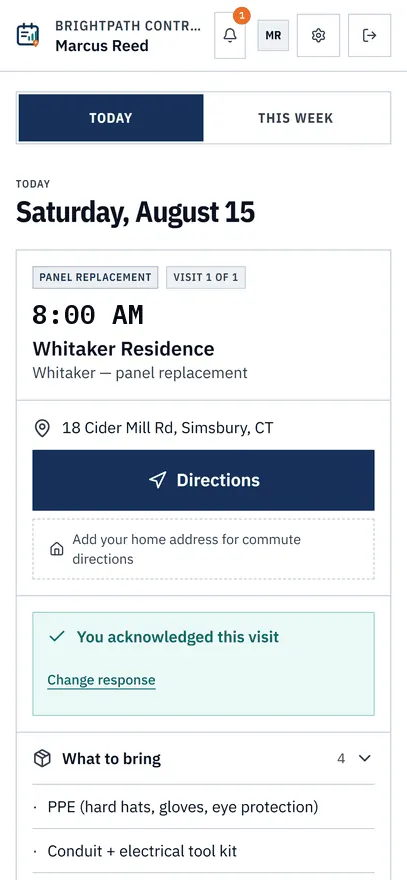
- Today and this week: each visit with the job type, address and start time.
- Directions in one tap.
- What to bring: the equipment list for that job.
- Acknowledge, or raise a conflict. If someone can't make it, the office sees it on the Tomorrow screen the night before.
- When a visit moves, everyone on it is told and asked to acknowledge again.
Time tracking per visit
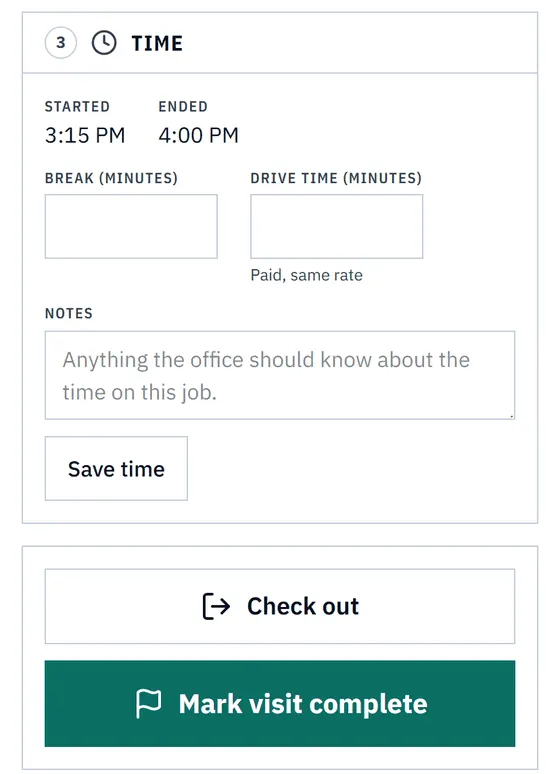
Check in at the address. Check out when you leave.
- Checking in stamps the time and records the phone's location once, to show how far from the site it was. There is no all-day tracking, and the app says so on screen.
- Start and end fill in from the punches. Break and drive time are the crew's to enter.
- Drive time only appears for people you pay for it. You set that per person.
- Hours belong to the visit, so a two-day install has two days of hours on one job.
- If someone forgets to punch in or out, you get an alert.
- Office corrections to hours are marked on the entry permanently, so you can always tell witnessed hours from edited ones.
Checklists and photos
The job isn't finished until the list is.
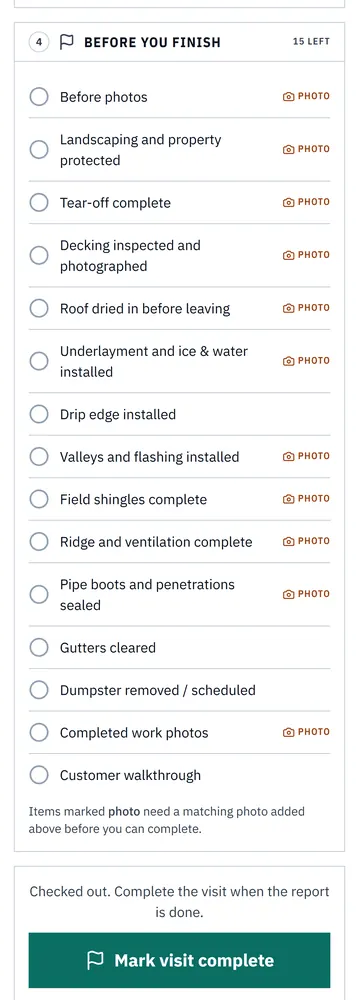
- Checklists come set up for the trade: readiness, safety and finish-up items for solar, and a 15-item finish-up list for a roof.
- Items marked photo won't tick without a photo attached.
- Photos are sorted by type: before work, existing damage, completed work, customer sign-off and more. The button opens the camera, not a file browser.
- Photos are shrunk on the phone before upload, so a day of pictures doesn't eat a data plan.
- Report a cost sits on the same screen: the extra bundle of pipe boots, with a photo of the receipt.
- Mark visit complete is the last tap. It's what releases the job to close-out, costing and metrics.
In the office
What the crew recorded, on the job.
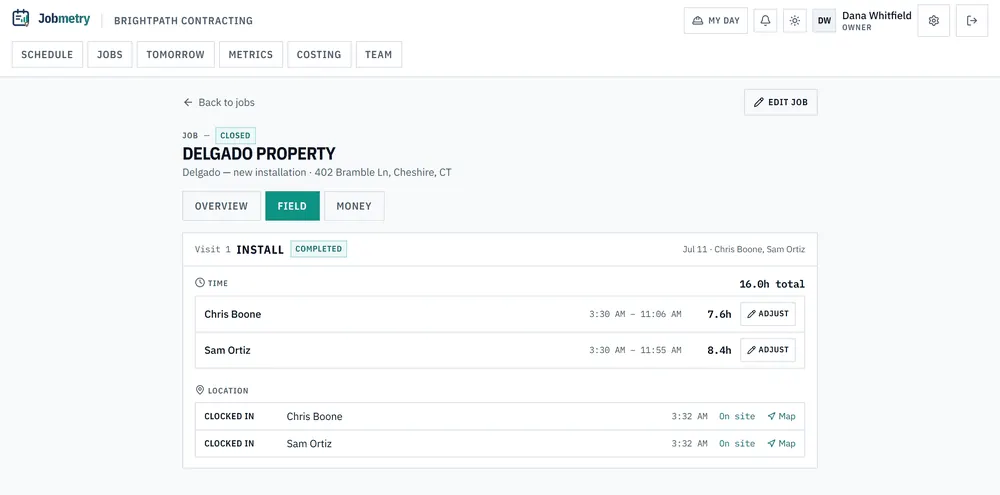
Each job's Field tab shows who clocked in, at what time, how far from the site they were, and their hours. Check-in distance is worked out on our server from the phone's location and the site's address. It can't be typed in.
Under a tenth of a mile reads "On site". Anything further shows the distance.
See both halves in one demo.
We run the office in one window and a crew member's phone in another, so you see what each side gets. About 15 minutes.